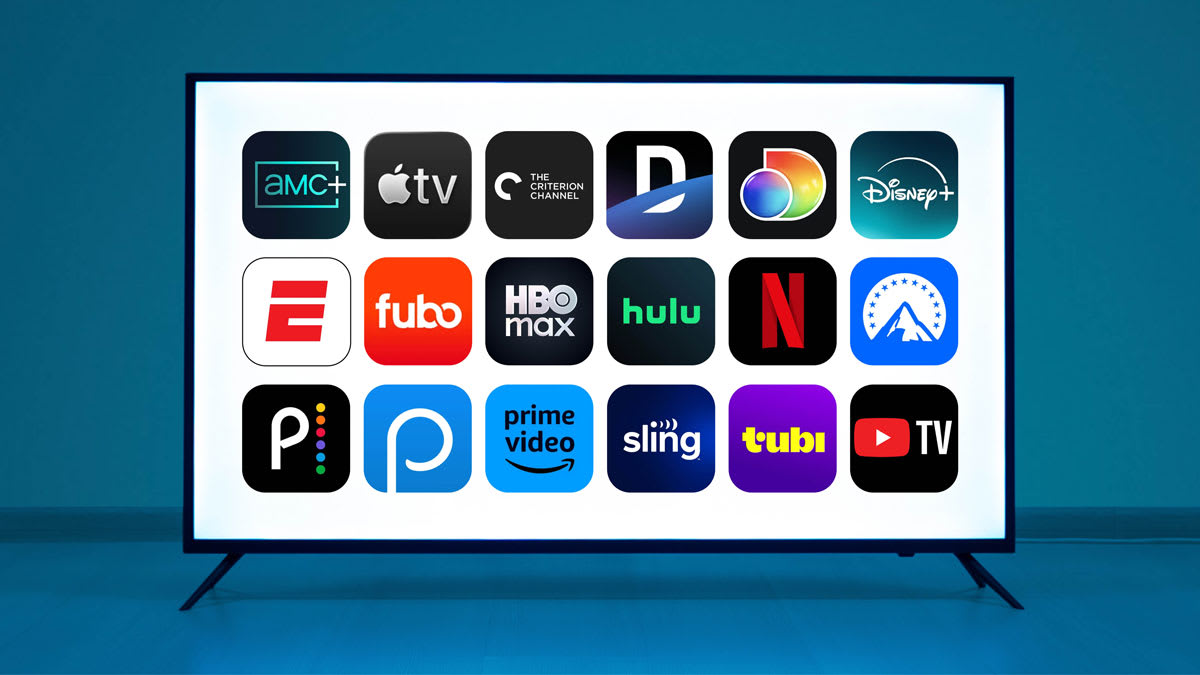
How to Fix Geolocation Error Codes on Smart TV Streaming Apps
What Causes Geolocation Errors?
Geolocation error codes (like Netflix's infamous M7111-5059) occur when a streaming platform enforces digital rights management (DRM) and regional licensing blocks. The platform looks at your internet connection, determines what country you're in, and restricts access to foreign libraries.
⚠️ Why Smart TVs Are Trickier Than Phones or PCs
Unlike a web browser that only exposes your IP address, Smart TVs often transmit a combination of your IP address, DNS requests, and router identifiers. You can't install a browser extension to hide your location — you need to alter how your TV routes its network traffic entirely.
Method 1: Use a Native VPN App
The Easiest Way — Works on Android TV, Google TV, and Amazon Fire OS.
If your Smart TV runs an OS that natively supports VPN apps, this is the simplest and most reliable method.
- Download a VPN: Open your TV's app store and search for a premium, streaming-optimized VPN. Avoid free VPNs — streaming platforms actively blacklist their IP addresses.
- Log in and connect: Select a server in the country where the content is licensed (e.g., a US server for the US Netflix library).
- Clear the streaming app's cache: Go to Settings > Apps, find the streaming app, and tap Clear Cache to prevent the app from remembering your previously blocked location.
- Launch the stream: Open the streaming app — the geolocation error should be replaced by the correct content library.
Method 2: Configure a Smart DNS
The Universal Way — Works on Samsung Tizen, LG webOS, and any TV that doesn't support native VPN apps.
A Smart DNS reroutes only the specific domain name requests used for location-checking — no full encryption overhead, which often means faster streaming speeds than a VPN.
- Register your IP address: Sign up for a VPN or proxy service that includes Smart DNS. Log into your account dashboard and whitelist your current home network IP.
- Get your DNS codes: Your provider will supply a Primary and Secondary DNS server IP address.
- Open network settings: On your TV, go to Settings > Network > Network Status > Advanced Settings.
- Switch DNS to Manual: Erase your ISP's default DNS numbers and input the Primary and Secondary Smart DNS codes.
- Restart the TV: Save settings and power cycle your TV to force a fresh network handshake.
Method 3: Router-Level VPN
The Nuclear Option — Works on any device, including Roku and Apple TV.
Install a VPN directly on your home router. Every device on your network — including your Smart TV — will have its IP masked simultaneously, with no app needed on the TV itself.
Requirements
A router that supports VPN client configuration — ideally running DD-WRT, OpenWRT, AsusWRT, or a pre-flashed router sold by a VPN provider.
How It Works
Input your VPN provider's OpenVPN or WireGuard config files into the router's admin dashboard. The router handles the location masking; your TV connects normally.
The Cat-and-Mouse Game
Streaming platforms spend millions updating their algorithms to detect and block VPN and DNS proxy servers. If a setup that worked yesterday suddenly throws a geolocation error again:
- • Open your VPN app or dashboard.
- • Switch to a different server in the same country.
- • Clear your streaming app's cache.
- • Try again — it's usually that simple.
Skip the Geo-Blocks Entirely with IPTV
Our IPTV service delivers international channels and content libraries directly — no VPN, no DNS changes, no error codes. Works on any device, anywhere.
🚀 Get Our IPTV Subscription