The Ultimate Guide: How to Sideload and Manage Media Apps on Modern Smart TV OS Environments
Why Sideload Media Apps?
Sideloading is the process of installing an application directly via its installation file (like an APK on Android) rather than through the official built-in app store. Users typically sideload media apps for three main reasons:
- • Accessing Open-Source Software: Community-driven media players like Kodi or specific VLC builds aren't always updated on official stores.
- • Bypassing Regional Restrictions: Some streaming services are region-locked on the TV's app store but work fine when installed manually.
- • Using Older Versions: Roll back to a stable version if a recent update broke the UI or introduced bugs.
OS Compatibility: Can Your TV Sideload?
Not all Smart TVs support sideloading equally. Here's what you need to know before getting started:
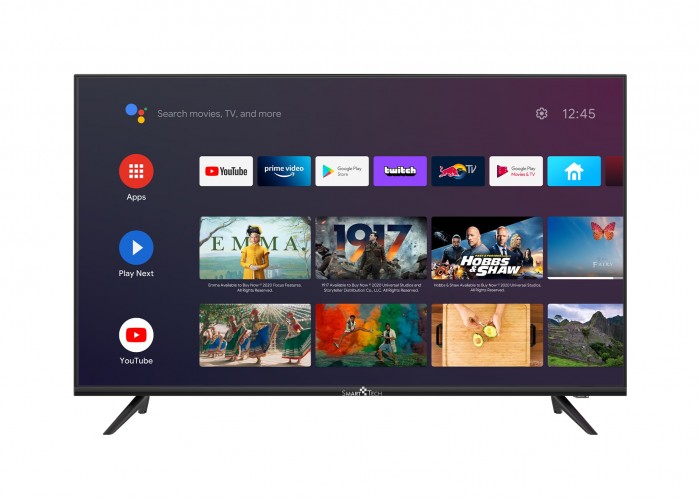
Android TV / Google TV (Sony, Hisense, TCL, Nvidia Shield) — Best support. Built on Android, APK sideloading is natively supported and straightforward.
Fire OS (Amazon Fire TV Stick, Fire TV Cube) — Also Android-based. Fully supports APK sideloading with slightly different menu layouts.
Tizen (Samsung) & webOS (LG) — Closed, proprietary systems. Sideloading is extremely difficult and limited. Recommended workaround: plug in a Google TV Chromecast or Amazon Fire Stick via HDMI.
Step 1: Enabling Developer Options
Manufacturers hide sideloading behind a security toggle to protect average users. Here's how to unlock it:
Android TV / Google TV
- Go to Settings > System > About
- Click Build number 7 times
- You'll see "You are now a developer!"
- Enable Unknown Sources under Apps > Security & Restrictions
Amazon Fire TV
- Go to Settings > My Fire TV > About
- Click the device name 7 times
- Press back to reveal Developer Options
- Turn on Install unknown apps
Step 2: Three Proven Methods to Sideload
1. The "Downloader" App Method (Easiest)
Install the Downloader app by AFTVnews from your TV's official store. Enter the direct URL of any APK file (use trusted repos like APKMirror), and the app will download and prompt installation automatically.
2. The Cloud Storage Method (Most Organized)
Download the APK on your PC, upload it to Google Drive or Dropbox, then use a file manager app (like Solid Explorer or FX File Explorer) on your TV to access and install it.
3. Sideloading via ADB (Advanced Users)
Enable Network Debugging in Developer Options, then connect via terminal:
adb connect [Your TV IP Address]
adb install [Path to your APK file]
Step 3: Managing Sideloaded Apps
- • Finding Apps: Sideloaded apps may not appear on the home screen. Use Settings > Apps > See all apps, or install Sideload Launcher for a dedicated app grid.
- • Managing Updates: Sideloaded apps won't auto-update. Periodically download the latest APK and install it over the existing one — data stays intact as long as the APK signature matches.
- • Touch-Only Interfaces: If an app was built for phones, connect a Bluetooth mouse or use Mouse Toggle to simulate a cursor with your remote.
Crucial Security Reminders
- • Only use trusted sources: Stick to APKMirror, F-Droid, or official GitHub pages — never shady forums or YouTube video descriptions.
- • Avoid piracy: Modified or pirated streaming apps are a fast track to trojans that can hijack your network.
- • Stick to legal open-source media managers like Kodi or VLC for a safe, powerful experience.
Ready to Supercharge Your Smart TV?
Pair your sideloaded IPTV player with our stable, high-quality playlist — compatible with Kodi, VLC, TiviMate, Open TV, and all major media apps.
🚀 Get Our IPTV Subscription